Configure shortcuts on Linux
On Linux Wayland, Murmure does not register any global shortcut itself. You bind OS-level custom shortcuts that call the murmure binary directly. This works reliably on every compositor (GNOME, KDE, Hyprland, Sway, others) and survives reboots without any extra configuration.
CLI commands reference
Murmure exposes the following commands. Each can be assigned to an OS-level custom shortcut.
| Command | Effect |
|---|---|
murmure --transcription |
Toggle standard transcription ON/OFF |
murmure --transcription-command |
Toggle transcription in Command mode |
murmure --paste-last |
Paste the last transcription |
murmure --cancel |
Cancel the current recording and return to idle |
murmure --voice-mode |
Toggle Voice Mode ON/OFF |
murmure --quit |
Quit Murmure completely |
murmure --llm-mode 1 |
Start transcription with LLM prompt 1 |
murmure --llm-mode 2 |
Start transcription with LLM prompt 2 |
murmure --llm-mode 3 |
Start transcription with LLM prompt 3 |
murmure --llm-mode 4 |
Start transcription with LLM prompt 4 |
murmure --llm-transform 1 |
Apply LLM prompt 1 to the selected text |
murmure --llm-transform 2 |
Apply LLM prompt 2 to the selected text |
murmure --llm-transform 3 |
Apply LLM prompt 3 to the selected text |
murmure --llm-transform 4 |
Apply LLM prompt 4 to the selected text |
Push-to-talk limitation
OS custom shortcuts fire on key press, not on key release. This means only toggle mode is usable. Push-to-talk (hold to record, release to stop) cannot be implemented with OS custom shortcuts.
GNOME
- Open Settings > Keyboard > View and Customize Shortcuts > Custom Shortcuts.
- Click the + button to add a new shortcut.
- Fill in:
- Name:
Murmure transcription(or any label you prefer) - Command:
murmure --transcription - Shortcut: press the key combination you want (e.g.
Ctrl+Super+Space) - Click Add.
Repeat for any other commands you want to bind (for example murmure --paste-last on a second shortcut).
KDE Plasma
- Open System Settings > Shortcuts > Custom Shortcuts.
- Click Edit > New > Global Shortcut > Command/URL.
- In the Trigger tab, assign your key combination.
- In the Action tab, set the command to
murmure --transcription. - Apply and close.
Repeat for any other commands you want to bind.
Cinnamon
- Open System Settings > Keyboard > Shortcuts > Custom Shortcuts.
- Click Add a custom shortcut.
- Fill in:
- Name:
murmure --transcription(or any label you prefer) - Command:
murmure --transcription - Click Apply, then click Unassigned next to the new entry and press the key combination you want.
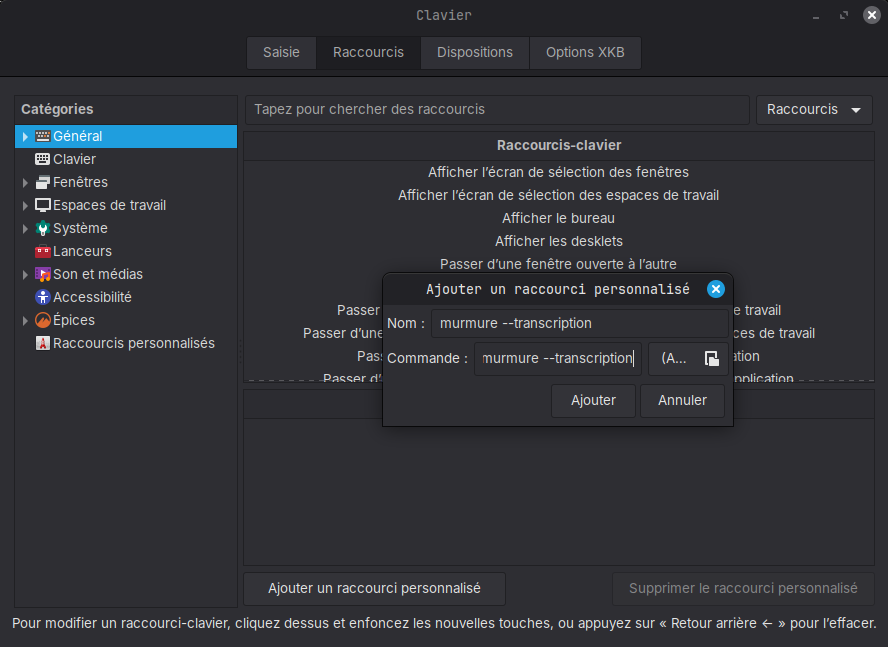
Repeat for any other commands you want to bind.
Hyprland
Add bindings to ~/.config/hypr/hyprland.conf. Replace SUPER, Y with your preferred modifier and key.
# ~/.config/hypr/hyprland.conf

bind = SUPER, Y, exec, murmure --transcription
bind = SUPER SHIFT, Y, exec, murmure --paste-last
bind = SUPER ALT, Y, exec, murmure --cancel
Reload Hyprland to apply (hyprctl reload or log out and back in).
Sway
Add bindings to ~/.config/sway/config. Replace $mod+y with your preferred combination.
# ~/.config/sway/config

bindsym $mod+y exec murmure --transcription
bindsym $mod+Shift+y exec murmure --paste-last
bindsym $mod+Control+y exec murmure --cancel
Reload Sway to apply (swaymsg reload).
Verify Murmure is in the PATH
If your compositor does not find the murmure binary, the shortcut will silently fail. Check that the binary is in your PATH:
If it is not found, use the full path in the command, for example /usr/local/bin/murmure --transcription.
Troubleshooting
Shortcut does nothing
- Verify that
murmureis in the PATH (runwhich murmurein a terminal). - Make sure Murmure is already running in the background before pressing the shortcut. The CLI commands communicate with the running instance.
- Check that no other application has claimed the same key combination in your OS keyboard settings.
The shortcut fires but nothing happens in Murmure
Open a terminal and run murmure --transcription manually. If it says "no running instance found", Murmure is not started. Launch it first (it starts in the tray).
Escape hatch: force XWayland
If you need XWayland for any reason (for example an older compositor), you can start Murmure with the GDK_BACKEND environment variable:
This is a GTK-standard variable. Murmure no longer sets it automatically. In XWayland mode, global shortcuts only fire when the Murmure window has focus.