First Steps
After installing Murmure, here's how to get the most out of it.
Your First Transcription
- Open any text field (a browser, a text editor, a chat app)
- Press
Ctrl+Space(default shortcut) - Speak clearly into your microphone
- Release the shortcut (or press it again in toggle mode)
- Your text appears in the focused application
Tip
The first transcription after launching Murmure is slightly slower because the AI model needs to warm up. Subsequent transcriptions are faster.
Choose Your Recording Mode
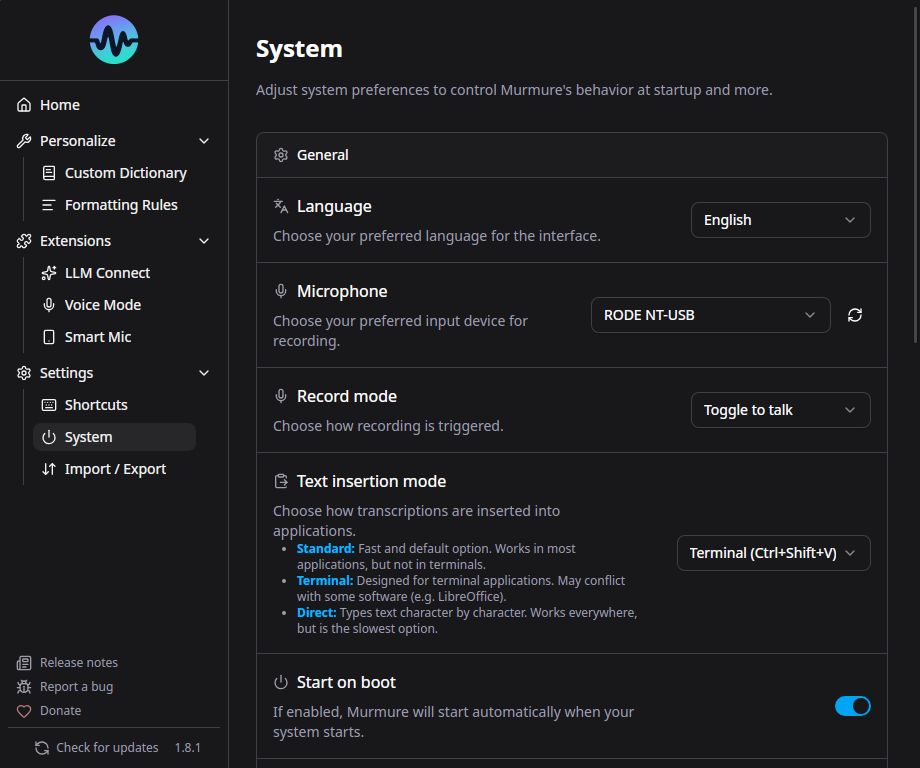
Go to Settings > System to pick a recording mode:
| Mode | How It Works |
|---|---|
| Push-to-talk (default) | Hold the shortcut to record, release to stop |
| Toggle-to-talk | Press once to start, press again to stop |
For hands-free recording with wake words, see Voice Mode (separate feature in Extensions).
Select Your Microphone
By default, Murmure uses your system's default microphone. To choose a specific one:
- Go to Settings > System
- Under Microphone, select the device you want
Virtual microphones
If you use a virtual microphone (NVIDIA Broadcast, VB-Audio, etc.), make sure to select it explicitly. The "Automatic" option may not pick it up.
Configure the Shortcut
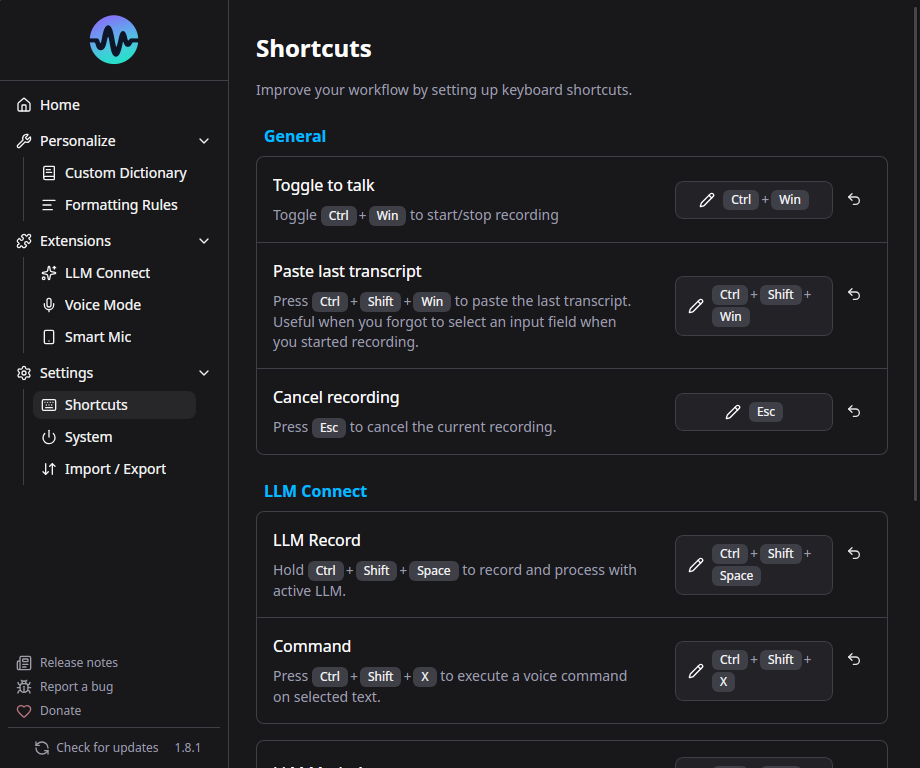
The default shortcut Ctrl+Space may conflict with other apps. To change it:
- Go to Settings > Shortcuts
- Click the shortcut field and press your preferred key combination
Recommended shortcuts by OS:
| OS | Recommended | Avoid |
|---|---|---|
| Windows | Ctrl+Space, Ctrl+Alt+M, F2, side/extra mouse button |
AltGr combos (interpreted as Ctrl+Alt) |
| macOS | Ctrl+Option+M, F2, F3, side/extra mouse button |
Anything with Space or numbers |
| Linux (X11) | Ctrl+Space, F2, side/extra mouse button |
- |
Text Insertion Modes
If your transcribed text doesn't appear in some applications, you may need to change the text insertion mode:
Go to Settings > System > Text Insertion Mode:
| Mode | How It Works | Best For |
|---|---|---|
| Standard (Ctrl+V) | Copies text to clipboard and simulates Ctrl+V | Most applications |
| Terminal (Ctrl+Shift+V) | Uses terminal-style paste | Terminal emulators |
| Direct (type text) | Simulates individual keystrokes | LibreOffice, Git Bash, apps where Ctrl+V doesn't work |
Tip
If text doesn't appear after transcription, try switching to Direct mode. See Text Insertion Troubleshooting for more details.
Enable Start on Boot
Go to Settings > System and enable Launch on startup. Murmure will start minimized to the system tray on boot.
What's Next?
- Dictionary - Add custom words for better recognition
- Formatting Rules - Auto-correct and transform text
- LLM Connect - Post-process with a local AI
- Voice Mode - Hands-free activation with wake words
- Smart Speech Mic - Use your phone as a wireless mic