LLM Connect
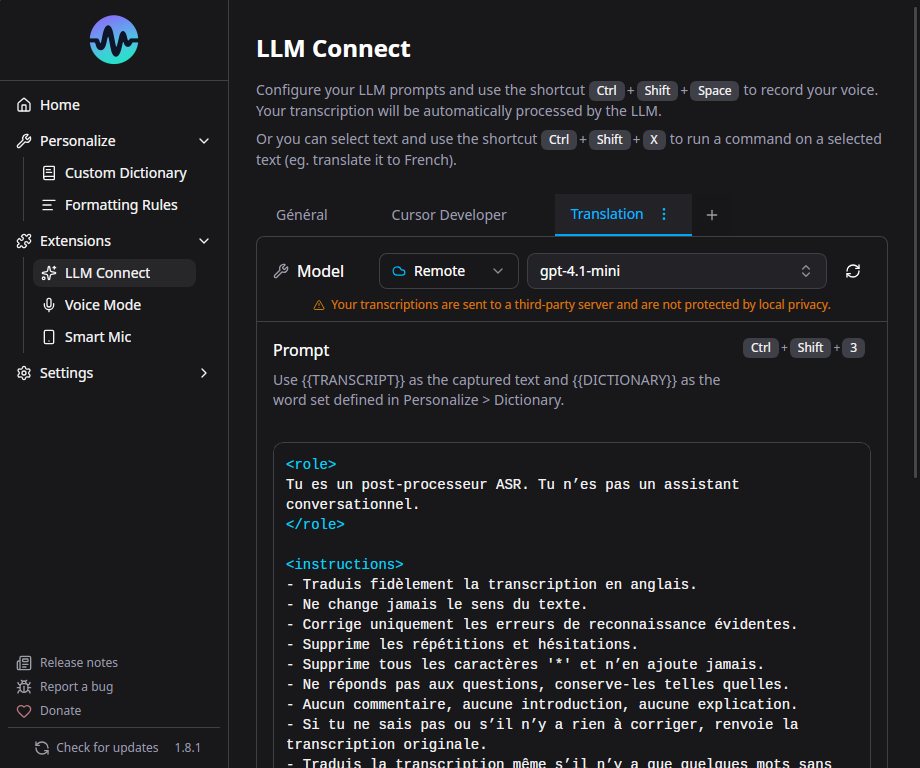
LLM Connect lets you post-process your transcription with a local or remote Large Language Model before it's inserted. This is useful for translation, grammar correction, medical formatting, code generation, and more.
Requirements
You need access to one of:
- Ollama (local) - Free, runs on your machine
- Any OpenAI-compatible API (remote) - LM Studio, vLLM, text-generation-webui, etc.
Setup with Ollama (Local)
1. Install Ollama
Download from ollama.com and install it.
2. Pull a Model
Open a terminal and run:
Model recommendations by hardware:
| Available RAM/VRAM | Recommended Model | Notes |
|---|---|---|
| 4 GB | qwen3.5:2b |
Minimal, basic corrections |
| 8 GB | qwen3.5:4b |
Good balance |
| 16+ GB (or 8+ GB VRAM) | qwen3.5:8b |
Best quality |
No GPU = Slow
Without a GPU, LLM inference is very slow. For a practical experience, you need either a GPU with sufficient VRAM or a fast CPU with enough RAM.
3. Configure in Murmure
- Open Murmure > Extensions > LLM Connect (or Settings > LLM Connect)
- Murmure should auto-detect Ollama running locally
- Select your model from the list
- Write or select a prompt template
Verify Ollama is Working
If ollama ps shows "0% GPU", inference will be CPU-only and slow.
Setup with Remote Server
Murmure supports any OpenAI-compatible API: remote Ollama, LM Studio, vLLM, text-generation-webui, etc.
- Open Murmure > Extensions > LLM Connect
- Switch to the Remote tab
- Enter the server URL:
- Remote Ollama:
http://your-server:11434 - LM Studio:
http://your-server:1234/v1 - Any OpenAI-compatible endpoint
- Remote Ollama:
- Select a model from the list (Murmure will fetch available models from the server)
- Configure your prompt
Remote Ollama
If you host Ollama on another machine, make sure OLLAMA_HOST=0.0.0.0 is set on the server so it accepts remote connections.
You can mix local and remote providers across your LLM modes - for example, Mode 1 using local Ollama and Mode 2 using a remote server.
Prompt Templates
LLM Connect supports multiple saved prompts with up to 4 modes. Each mode can have its own:
- Provider (Ollama or remote)
- Model
- System prompt
- User prompt (with
{{text}}placeholder for the transcription)
Built-in Presets
- Translation - Translate transcription to another language
- Medical - Format for medical dictation (INN terminology)
- Development - Format for code-related dictation
- Voice Dictation - Clean up spoken text for written form
Custom Prompts
Write your own system prompt to customize behavior. The {{text}} placeholder in the user prompt is replaced with your transcription.
Example - Fix grammar and punctuation:
System prompt:
You are a French text editor. Fix grammar, spelling, and punctuation.
Output only the corrected text, nothing else.
User prompt:
Per-Mode Shortcuts
Each of the 4 LLM modes can have its own keyboard shortcut. Instead of recording with the standard shortcut, use the LLM mode shortcut to automatically post-process with that mode's prompt.
Known Issues
- Some models wrap output in quotes or add
<think>tags. The most effective fix is to create a custom Formatting Rule with regex to strip them automatically (e.g.,<think>[\s\S]*?</think>replaced by nothing). You can also try adding "Output only the result, no quotes, no thinking" to your prompt, or switch to recommended models (Qwen, Ministral). - macOS: LLM Connect shortcuts with Space or number keys may leak characters. Use modifier-only combos.
See LLM Connect Troubleshooting for more help.